DataSoft Blog
Smart Shipping Starts on the Inside of the Box
If you ship orders with multiple small items in a single box, you already know the pain: a missing part discovered by a frustrated customer, a warehouse worker trying to remember what was packed an hour ago, a packing slip lost somewhere between the bench and the shipping dock. It happens. But it does not have to.
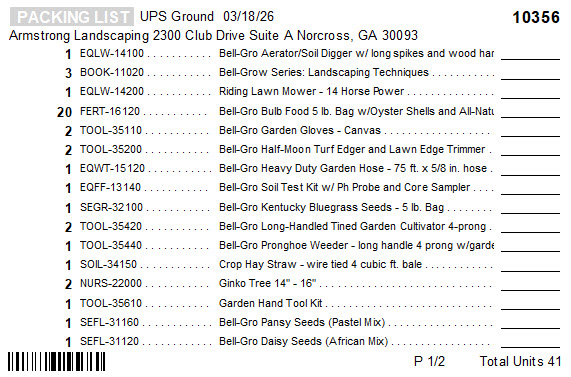
Articles offers a packing label report as a separate download from the report catalog. Once installed, it prints a 4×6 thermal label — the industry standard size — that goes on the inside flap of the box before it is sealed.
Thermal Labels Are Cheap
You do not need expensive equipment to use this. A basic thermal label printer runs around $40, and a pack of 500 labels costs about $5. No ink, no toner, no maintenance. Thermal printers are fast, reliable, and quiet enough to sit on any packing bench without getting in the way.
The 4×6 label size is the same standard used by shipping carriers like UPS and FedEx, so if you already have a thermal printer for shipping labels, you may already have everything you need.
The Label Goes on the Inside Flap
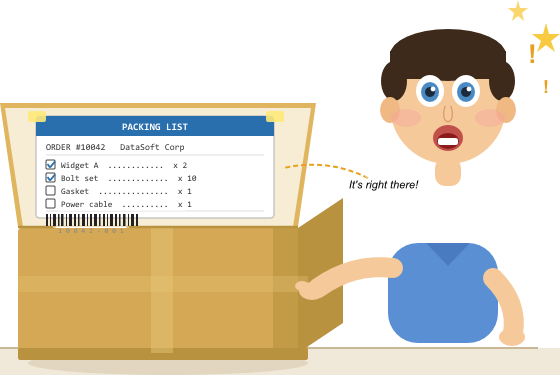
Most packing slips travel on the outside of a box, where they can be damaged, lost, or left behind on the bench. This label is designed to go on the inside of the top flap or any type of container you use. The customer opens the box and finds it immediately. Your warehouse staff uses it as a live checklist while packing.
Because it travels sealed inside the box, it cannot fall off in transit, cannot be mislaid in the warehouse, and arrives with the order every single time.
A Checklist That Gets Used
Each line item on the label has a printed checkbox or quantity shipped area. As each item goes into the box, the packer checks it off. This is not just good practice — it creates a physical record that the order was verified before sealing. No more relying on memory. No more half-packed boxes going out the door because someone was interrupted mid-pack.
The label is especially useful when an order contains many small pieces. Like spare parts, accessories, consumables, or components. These are exactly the items easiest to miss and hardest for a customer to notice are missing until they actually need them.
The Barcode Closes the Loop
At the bottom of the label, Articles prints a barcode tied to the order. When the packer is done and the box is ready to seal, they scan the barcode with a standard warehouse scanner. That single scan updates your accounting system, marking the order as shipped and automatically recording the timestamp.
No double entry. No separate terminal. No forgetting to mark an order dispatched at the end of a busy day. The barcode value can be the order number, invoice number, or any reference your accounting system recognizes.
Why It Cuts Down on Shipping Errors
Shipping errors tend to cluster around the same causes: items missed during packing, orders mixed up on a busy bench, and no real verification step before sealing. The packing label addresses all three directly. The checklist keeps the packer focused. The inside-flap placement means it travels with the order. The barcode scan confirms dispatch without any manual follow-up.
Customers benefit too. When they open the box, the label is right there as a packing list. They can verify their order against it immediately, which cuts down on unnecessary support contacts and disputes over missing items.
Getting It
The packing label report is not included in Articles by default. It is available as a separate download from the Articles report catalog inside the application. Install it once and it works like any other Articles report — pull up the order, run the label, print. It fits into the existing workflow without any additional software or configuration beyond the first setup.
DataSoft Blog
Why Sage 50 Keeps Losing Connection — And How to Stop the Random Disconnects
If Sage 50 randomly disconnects while you are saving a transaction or switching screens, the root cause is almost always technical: network interruptions, power saving, or file access interference. Sage 50 uses the Actian Zen database engine, which is sensitive to even brief drops in connectivity or file availability. Once you understand how it communicates with the server, stabilizing it becomes straightforward.
How Sage 50 Actually Connects to Your Data
Sage 50 uses Actian Zen (formerly Pervasive/PSQL) to read and write directly to the company data folder on a server or host machine. Workstations access that folder over SMB file sharing. Zen relies on:
- continuous SMB connectivity
- record-level locking
- synchronous file I/O
- low and stable network latency
If the network link drops, the server sleeps, the NIC powers down, or another process temporarily locks a file, Zen can lose access to the data it is working with. When that happens, Sage 50 disconnects.
1. Network Adapters Turning Off to Save Power
Windows can put network adapters into low-power mode. When it does, the adapter briefly disconnects from the network. For a database engine that expects a continuous connection, that is enough to cause a drop.
Symptoms
- disconnects after being idle
- disconnects when the screen turns off
- disconnects after sleep or hibernate
Fix
- Open Device Manager and expand Network Adapters
- Right-click the active adapter and choose Properties
- On the Power Management tab, uncheck “Allow the computer to turn off this device to save power”
- Repeat on every Sage 50 workstation and on the server
2. Wi‑Fi Instability
Wi‑Fi introduces latency spikes, packet loss, and brief drops that are often invisible in normal use but are enough to break a database session. Sage 50 is designed for wired Ethernet, not wireless.
Symptoms
- disconnects are more frequent on laptops
- disconnects occur when moving around the office
- only certain users (on Wi‑Fi) report problems
Fix
- Use wired Gigabit Ethernet for all Sage 50 workstations
- Don’t use WIFI with Sage 50
3. Server Sleep, Hibernate, and SMB Idle Timeouts
If the server or host machine that stores the Sage 50 data sleeps, hibernates, or powers down its network adapter, all active connections are dropped. SMB sessions can also time out if the server is configured aggressively.
Fix
- On the server, disable sleep and hibernate
- Set “Turn off hard disk” to Never in the power plan
- Disable NIC power saving on the server as well
- Ensure the server remains powered and connected during business hours
4. DNS and Hostname Resolution Problems
Actian Zen uses hostnames for communication. If DNS or NetBIOS name resolution fails intermittently, workstations can lose the ability to locate the server even though the network is otherwise up.
Symptoms
- “Cannot connect to database” appears randomly
- some workstations connect reliably, others do not
- ping by IP works, ping by hostname fails or times out
Fix
- Map the Sage data drive using the server hostname, not its IP address
- Verify that the server has a stable IP (static or DHCP reservation)
- Check DATAPATH= in Peachtree###.ini and ensure it uses the hostname
- Open ~PVSW~.LOC in the data folder and confirm the server name is correct
5. Cloud Sync (OneDrive, SharePoint, Dropbox, Google Drive)
If any Sage 50 folder is synced by a cloud service, the sync client can rename files, create temporary files, or lock files while uploading. This conflicts with Zen’s file locking and can cause disconnects and, over time, data corruption.
Fix
- Ensure the Sage data folder is not inside a OneDrive, SharePoint, Dropbox, Google Drive, or similar synced location
- Disable syncing for:
- the Sage company data folder
- the Sage program folder
- the Sage configuration folder
- Check mapped drives to confirm they do not point to a cloud-backed path
6. Antivirus Scanning the Sage Data Folder
Real-time antivirus scanning can briefly lock or delay access to Sage data files. When Zen attempts to read or write during that window, it may interpret the delay as a failure and the session can drop.
Fix
- Add exclusions on the server and all workstations for:
- the Sage program folder
- the Sage data folder
- Actian Zen program folder
- .DAT files
- peachw.exe
- Schedule full scans outside business hours
7. Faulty or Overloaded Network Hardware
Bad cables, failing switch ports, or overloaded consumer-grade switches can cause intermittent packet loss and brief disconnects that affect database traffic first.
Fix
- Verify link speed on server and workstations (1.0 Gbps is preferred)
- Replace any cable or port that negotiates at 100 Mbps
- Avoid chaining multiple small switches; use a central, business-grade switch where possible
8. Server Resource Bottlenecks
If the server is under heavy load, Actian Zen may not respond quickly enough to client requests. This can appear as timeouts or dropped sessions.
Fix
- Use an SSD for the Sage data folder
- Provide at least 16 GB of RAM on the server
- Avoid running resource-heavy applications on the same machine that hosts Sage data
9. Database Services After Windows Updates
Windows updates can restart or leave services in a degraded state. If the Actian Zen services are not running correctly, Sage 50 may disconnect or fail to connect.
Fix
- On the server, restart the Actian Zen/PSQL services
- After restarting services, restart affected workstations
The Bottom Line
Sage 50 disconnects are almost always the result of how Actian Zen interacts with Windows networking and file access. The application expects a stable, low-latency, uninterrupted connection to the data folder. Wi‑Fi, power saving, cloud sync, antivirus scanning, DNS issues, and weak network hardware all introduce instability that a database engine cannot tolerate.
Work through the items above methodically. Once you remove Wi‑Fi, disable NIC power saving, keep the server awake, avoid cloud sync on Sage folders, configure antivirus exclusions, and ensure solid network hardware, Sage 50 becomes significantly more stable in multi-user environments.

DataSoft Blog
If you’ve ever watched Sage 50 spin endlessly while a coworker posts a transaction, or sat helpless while “Not Responding” freezes your screen during a backup, you’re not alone. Multi-user performance is one of the most complained-about issues in the entire Sage 50 community — and it’s been that way for years.
This isn’t a one-line fix article. We’re going to dig into why this happens at an architectural level, and then walk through every meaningful thing you can actually do about it.
Why Sage 50 Struggles on a Network — The Real Reason
Before you start tweaking settings, you need to understand what you’re dealing with. Sage 50 is a desktop-first application built around the Actian Zen database engine (formerly Pervasive, formerly PSQL). Unlike cloud-based systems that push data through a proper client-server architecture, Sage 50 works like this:
- The company data files live in a shared folder on one machine (the “server”)
- Every workstation on the network directly reads and writes those files across the network
- The Actian Zen workstation engine on each machine manages locking and transactions
This means every mouse click, every screen load, every report — it all travels over your network to that shared folder and back. The database engine is extremely sensitive to network latency. A slight hiccup on a flaky switch, a wireless dropout, or a slow NIC can cause the entire office to grind to a halt.
One weak link brings everyone down. That’s the core problem.
The Usual Suspects — and How to Eliminate Them
1. Your Antivirus Is Scanning Sage Files in Real Time
This is the single most common cause of sudden, unexplained slowdowns — and it’s frequently overlooked. When your antivirus scans every file Sage reads and writes in real time, it adds latency to every single database operation. The more users, the worse it gets.
The fix: Add exclusions on both the server and every workstation for:
- The Sage installation folder (typically
C:\Program Files (x86)\Sage\Peachtree\)
- The company data folder (typically
C:\Sage\Peachtree\)
- The Actian Zen program folder
- Sage 50 data files — extension
.dat
- The Sage executable:
peachw.exe
Real-world example: A five-user office running Sage 50 2024 spent months chasing a performance problem. The culprit turned out to be MalwareBytes ThreatDown performing real-time scans on the server’s data directory. Once excluded, performance returned to normal immediately.
2. You’re Mapping Drives by IP Address Instead of Hostname
Sage 50 is not supported when mapped by IP address. The Actian Zen engine uses Windows name resolution for its locking and connection logic. Mapping by IP causes slowdowns, intermittent disconnections, and database errors.
The fix:
- Map your Sage drive using the server hostname, not its IP address
- Verify
DATAPATH= in Peachtree###.ini uses the hostname
- Check
~PVSW~.LOC in the data folder for the correct server name
3. Your Network Profile Is Set to “Public”
Windows firewall restricts file sharing and named pipes on Public networks, both of which Sage relies on.
The fix:
- Ensure all machines are set to Private (or Domain)
4. You’re Syncing Sage 50 Files Through OneDrive (This Will Break Everything)
Sage 50 cannot operate correctly when any part of its environment is synced through OneDrive, SharePoint, Dropbox, Google Drive, or any cloud‑syncing platform. This includes the company data folder, the Sage 50 program folder, configuration files, and any directory containing .DAT, .DDF, or .LOC files.
The reason is simple: Sage 50 uses the Actian Zen database engine, which performs real‑time file locking, record‑level writes, and high‑frequency I/O directly against the local NTFS filesystem. Cloud‑sync tools introduce delayed write‑back, file versioning, temporary renaming, and conflict copies — all of which interfere with Zen’s locking model.
Even a single OneDrive‑managed folder can cause:
- random “File in Use” errors
- corrupted .DAT files
- disappearing or duplicated company folders
- multi‑user freezes and lockups
- Actian Zen transaction rollbacks
- complete company file corruption
OneDrive is excellent for documents — but it is fundamentally incompatible with database engines that require synchronous, low‑latency file access.
The fix:
1. Turn off OneDrive syncing for all Sage‑related folders
Disable syncing on:
- the Sage company data folder (e.g., C:\Sage\Peachtree\)
- the Sage program folder (C:\Program Files (x86)\Sage\Peachtree\)
- the Sage configuration folder (C:\ProgramData\Sage\Peachtree\)
- any mapped drive pointing to a OneDrive‑backed directory
If OneDrive shows a cloud icon next to your Sage folders, they are being synced — and this must be disabled immediately.
2. Move the company data to a true local or LAN‑shared NTFS folder
- Use a local SSD on the server or a proper Windows SMB network share.
- Do not store Sage data in OneDrive, SharePoint, Dropbox, Google Drive, or iCloud.
3. Verify your configuration files aren’t pointing to a synced path
- Check DATAPATH= in Peachtree###.ini
- Check the path inside ~PVSW~.LOC
- Check the path shown in Sage 50 → File → Open Company
If you see anything like C:\Users\Name\OneDrive\Documents\Sage\, that is a problem.
Technical note:
Actian Zen relies on transactional Btrieve operations, record‑level locking, page‑level writes, and synchronous file I/O. Cloud‑sync tools rely on asynchronous replication, temporary renaming, versioning, and eventual consistency. These models are incompatible, which is why syncing Sage folders is one of the fastest ways to corrupt a company file.
5. The Actian Zen Workstation Service Needs a Restart
Windows updates or power interruptions can put the Zen engine into a bad state.
The fix:
- Restart Actian Zen services on the server
- Restart them on affected workstations
- Ping the server by hostname to check latency
6. Your Data Folder Permissions Are Wrong
Incorrect permissions cause file access conflicts and freezes.
The fix:
- Grant Full Control to all Sage users
- Do not store data in restricted system folders
- Map the network drive directly to the shared folder
7. Wi-Fi Is Killing You
Sage 50 requires wired Ethernet. Wi-Fi introduces latency and packet loss.
Never use WIFI with Sage 50.
The fix:
- Use wired Gigabit Ethernet
- If Wi-Fi is unavoidable, use Wi-Fi 6 and a strong signal
- Again, never use WIFI with Sage 50
8. The Backup Is Freezing the Office
Sage backups lock the company file and slow down all users.
The fix:
- Schedule backups after hours
- Use single-user mode in Premium/Quantum
- Consider file-level backup tools
9. Multiple Companies Open at the Same Time
Each open company multiplies load on the Zen engine.
The fix:
- Only keep open the companies you are actively using
10. You’re Overdue for Hardware Basics
Underpowered machines struggle with multi-user Sage environments.
- RAM: 8GB minimum workstations, 16GB server
- Storage: Use an SSD for the data folder
- Server OS: Use a dedicated machine
- Windows Updates: Keep all systems current
Quick Reference — Troubleshooting Order
- Check antivirus exclusions
- Verify mapped drives use hostname
- Confirm network profile is Private
- Turn off OneDrive syncing for all Sage 50 folders
- Restart Actian Zen services
- Check folder permissions
- Ping server by hostname
- Move workstations to wired Ethernet
- Schedule backups after hours
- Check server hardware
The Bottom Line
Sage 50’s performance problems are architectural, but most slowdowns come from antivirus interference, bad network configuration, and aging hardware. Work through the list methodically and isolate each variable.
If you are still having issues, reach out to our support group.