DataSoft Blog
What Sage 50 Users Need to Know Before They Decide
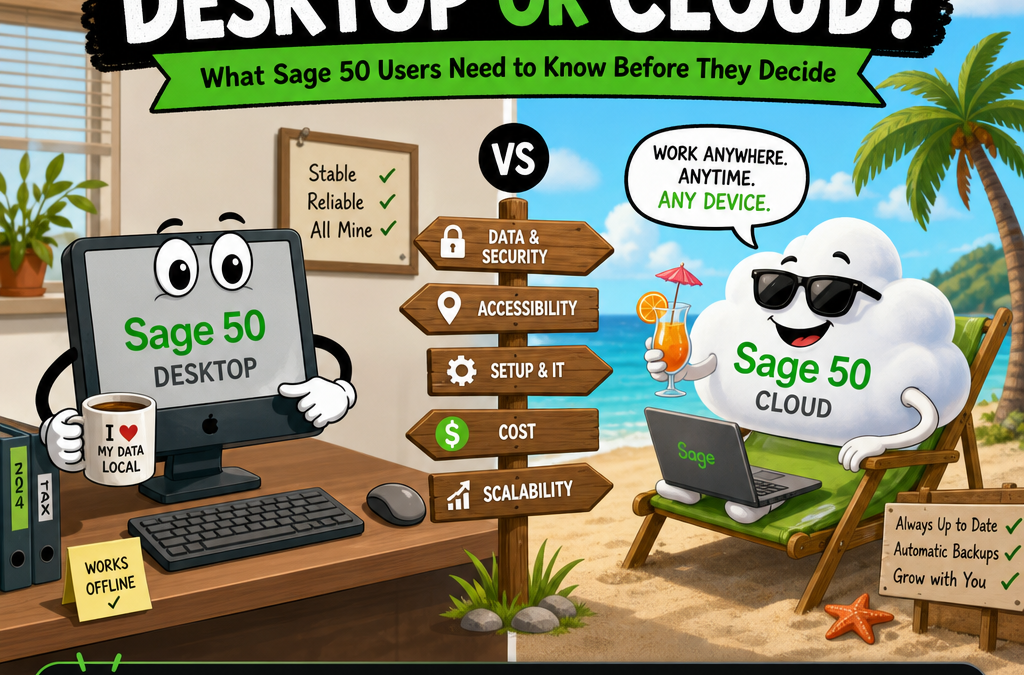
If you have been using Sage 50 for any length of time, you have probably seen the push toward the cloud subscription. Sage has been steering users in that direction for about a year, and the marketing makes it sound like a straightforward upgrade. The reality is more nuanced, and for many businesses the desktop version is still the smarter choice.
Here is an honest comparison.
How Sage 50 Cloud Actually Works
This surprises a lot of people: Sage 50 Cloud is not a web application, and your data is not syncing back and forth over the internet. Sage 50 Cloud runs on Microsoft Azure servers maintained by Sage, and you connect to it through a modified Remote Desktop session. You are essentially remote-controlling a copy of Sage 50 running on their server. The software itself is identical to the desktop version, same screens, same menus, same features.
What travels over the wire is your keyboard input and screen updates, just like any Remote Desktop connection. Reports and exports get transferred back to you when you need them.
Knowing this changes how you think about the trade-offs.
The Pricing Reality
One thing worth clearing up: Sage 50 is no longer sold as a one-time purchase. Both desktop and cloud are annual subscriptions, so the question is not "buy once vs. pay forever." It is simply which subscription model makes more sense for your situation.
That framing makes the cost comparison straightforward. A basic desktop PC capable of running Sage 50 as a server for a small office is inexpensive, a few hundred dollars. Once you own the hardware, your annual cost is just the Sage subscription itself. The cloud version adds the Azure hosting fee on top of that, which Sage bundles into the cloud pricing.
Run the numbers for your office size and you will usually find that desktop costs less per year. The bigger the team, the bigger the gap.
The Case for Desktop
You Own the Hardware
Your company file lives on your own machine or server. You back it up when you want, where you want, using whatever backup solution you prefer. You restore it yourself if something goes wrong. There is no waiting on Sage to do anything.
Performance Is Local
Because the database runs right there on your network, everything is fast. Reports, transaction lookups, opening large company files, it all happens at local network speeds. Remote Desktop over the internet, even on a good connection, adds latency you will feel during a busy workday.
No Internet, No Problem
Your internet goes down. Your router needs a reboot. A contractor cuts a fiber line. With desktop, none of that stops your day. Cloud users are dead in the water until the connection comes back.
You Can Use Third-Party Software
This is a significant practical difference. Because your Sage 50 data sits on your own Actian Zen database, you can connect third-party applications directly to it, custom report writers, data extraction tools, business intelligence software, integrations with other systems. Sage does not allow any of that with the cloud version. Their Azure environment is locked down, and direct database access from outside is not permitted.
If you rely on any software that talks directly to your Sage 50 data, the cloud version simply will not work for you.
You Get Updates on Your Schedule
When Sage releases an update for the desktop version, you choose when to install it. You can wait until your accountant gives the all-clear, until a slow period in your business, or until early adopters have confirmed there are no surprises in the new release. You stay in control.
The Real Problems With Sage 50 Cloud
Company File Lockups
This is one of the most commonly reported frustrations from cloud users. The company file gets locked and nobody can get in. It happens after unexpected disconnections, session timeouts, or server-side issues on Azure. The only fix is to contact Sage Support and wait for them to manually reset the lock.
If this happens on a Monday morning when payroll needs to run, you are in a support queue. Desktop users deal with multi-user file locks too, but they resolve them immediately by restarting the Sage service or rebooting the workstation. No support ticket required.
Server Maintenance and Downtime
Sage's Azure infrastructure has scheduled maintenance windows, and unscheduled outages happen too. When there is a problem on Sage's end, every cloud customer is affected simultaneously. The Sage community forums regularly see threads asking "Is cloud down for anyone else?" and it is a familiar pattern.
With desktop, your uptime is your own business. If your server needs a reboot, you schedule it yourself.
Software Updates Are Out of Your Hands
When Sage rolls out an update to their cloud platform, it happens on their timeline, not yours. Updates can take time to reach all users, meaning your office might be running a different version than your accountant or bookkeeper for a period. You have no ability to delay an update you are not ready for, and no ability to speed one up if you are waiting on a fix.
Printer Limitations
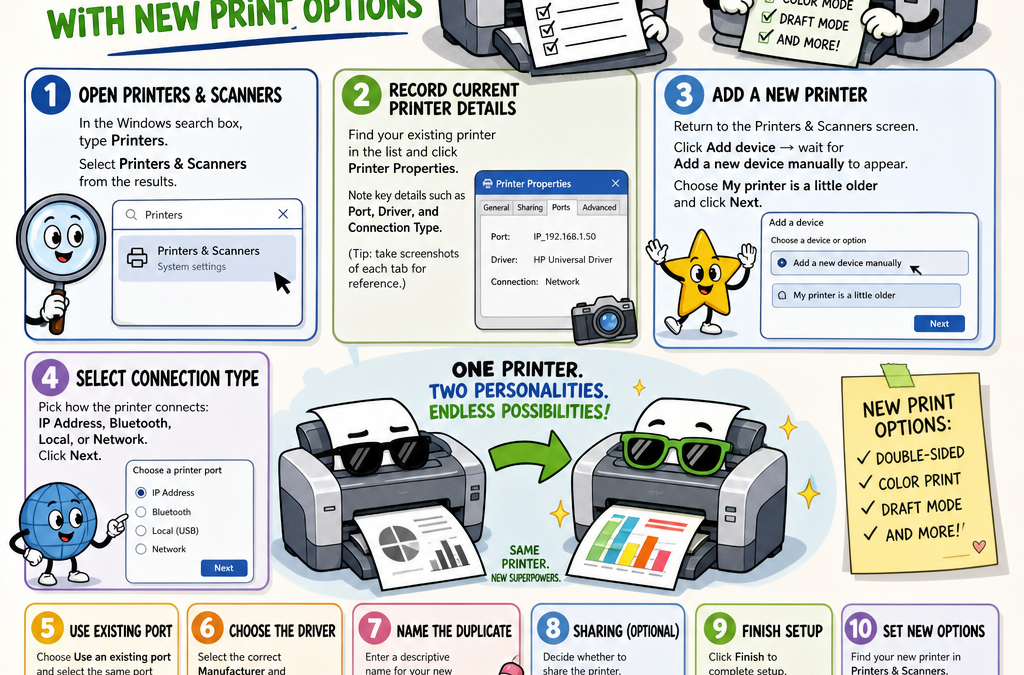
This is a frustration that catches many cloud users off guard. Because Sage 50 Cloud runs inside a Remote Desktop session on an Azure server, your local printers are not natively available to the application the way they are on a desktop install. Many users report that their usual printer options simply do not appear, and printing features like double-sided output or custom paper trays may not work at all. Sage is aware of this and it may improve over time, but it is a real day-to-day annoyance for anyone who prints invoices, statements, or reports regularly.
Slower Performance for Power Users
Even on a fast internet connection, a Remote Desktop session feels different from a local application, especially for report-heavy workloads. Generating a complex AR aging report or a detailed inventory valuation involves a lot of screen redraws and data transfer. Users on slower broadband or in areas with high latency notice this immediately.
Support Dependency for Basic Operations
Cloud users frequently report needing Sage Support for things that desktop users handle themselves: resetting a locked file, recovering from a failed session, restoring access after an outage. Each of those calls means downtime and hold times. The cloud model trades your autonomy for Sage's convenience.
No Direct Data Access
Sage locks down the Azure environment. You cannot install report writers, connect custom applications, or run any software that accesses the Actian Zen database directly. Everything has to go through the Sage 50 interface itself. For businesses with basic needs that is fine. For anyone who has built workflows around third-party tools or custom reporting, it is a hard stop.
Where Cloud Has a Genuine Advantage
The cloud version does make sense for specific situations.
Truly remote workers who need access from locations where setting up a VPN or remote desktop to their own server is not practical will find it convenient. Businesses with no local IT staff and no desire to manage a server may appreciate letting Sage handle the hardware. Traveling owners or accountants who need access from multiple locations without any setup will find it straightforward.
If you fit one of those descriptions and you do not need third-party software integration, the cloud version is a reasonable choice. Just go in with realistic expectations about performance, printer support, and update timing.
The Bottom Line
Both versions are the same software. Both cost you an annual subscription. The cloud version puts that software on Sage's Azure servers; the desktop version puts it on hardware you own and control.
Desktop gives you faster local performance, no internet dependency, full printer support, the freedom to connect third-party tools, and the ability to resolve your own problems without waiting on a support line. A capable desktop server costs a few hundred dollars, making the annual total cost lower for most offices.
The locked-file issue alone is worth taking seriously. Having to call Sage Support and wait for a manual reset just to open your accounting software is a real operational risk, and it is one that desktop users simply do not face.
Before you move to the cloud, add up the annual costs for your team size, think about whether you use any third-party tools that touch your Sage data, and ask yourself honestly how much downtime you can absorb when something goes wrong on Sage's end.
For most small businesses, the math and the control both point the same direction.
DataSoft Articles is a reporting platform for Sage 50 and Actian Zen users. Because Articles connects directly to your Actian Zen database, it works with the desktop version only, which is exactly why we built it that way. Learn more here.
DataSoft Blog
What it is
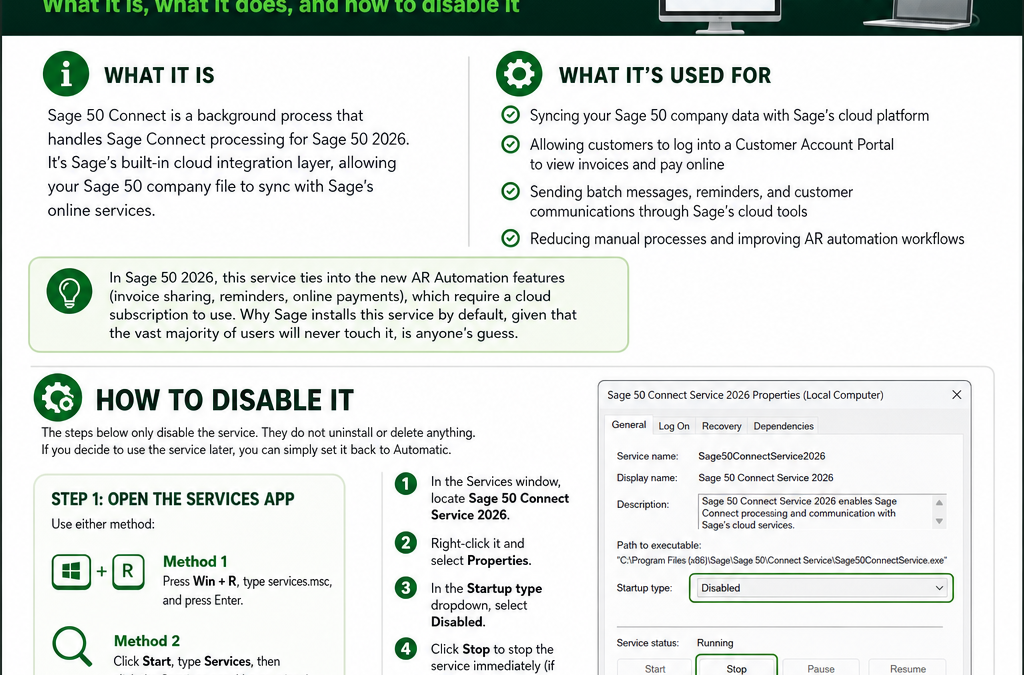
Sage 50 Connect is a background process that handles Sage Connect processing for Sage 50 2026. It's Sage's built-in cloud integration layer, allowing your Sage 50 company file to sync with Sage's online services.
What it's used for
- Syncing your Sage 50 company data with Sage's cloud platform
- Allowing customers to log into a Customer Account Portal to view invoices and pay online
- Sending batch messages, reminders, and customer communications through Sage's cloud tools
- Reducing manual processes and improving AR automation workflows
In Sage 50 2026, this service ties into the new AR Automation features (invoice sharing, reminders, online payments), which require a cloud subscription to use.
Why Sage installs this service by default, given that the vast majority of users will never touch it, is anyone's guess.
Why you may want to turn it off
Even if you have no plans to use the AR Automation or cloud features, this service runs in the background regardless. For most users, that means:
- Unnecessary processing of data that has nothing to do with how they actually use Sage 50
- Occasional conflicts with user security roles
- Slower company file opening times
If you're not using the cloud-based AR features, there's little reason to let this service run.
How to disable it
The steps below only disable the service. They do not uninstall or delete anything. If you decide to use the service later, you can simply set it back to Automatic.
- Open the Services app using either method:
- Method 1: Press
Win + R, type services.msc, and press Enter.
- Method 2: Click Start, type Services, then click the Services app (the gear icon).
- In the Services window, locate Sage 50 Connect Service 2026.
- Right-click it and select Properties.
- In the Startup type dropdown, select Disabled.
- Click Stop to stop the service immediately (if it's currently running).
- Click Apply, then OK.
That's it. The service is now disabled and won't start back up the next time you reboot. If you ever need it again, just repeat these steps and set Startup type back to Automatic.
DataSoft Blog, Sage 50 Tips
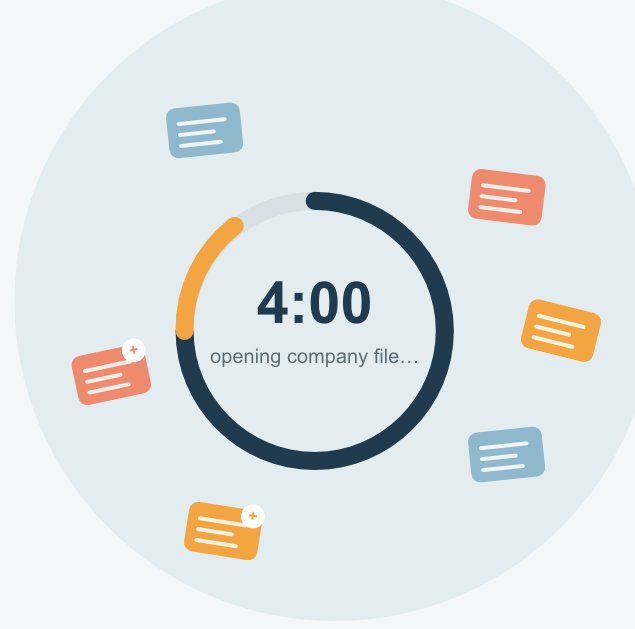
If you've recently updated to Sage 50 2026 and noticed that opening your company file now takes significantly longer — sometimes up to four minutes, you're not imagining it, and you're not alone.
What's Going On
With the 2026 release, Sage introduced several new background services that run as part of Sage 50. While these services are designed to add new functionality, they're also creating a large number of additional data records behind the scenes. Over time, these extra records build up in your company dataset, and that buildup is what's slowing things down when you open your company file.
The good news: this isn't a sign that anything is wrong with your business data. It's an issue with how the dataset itself has grown, and it can be fixed.
How to Fix It
To get your company file back to opening quickly, your dataset needs to be cleaned up — specifically, those extra records need to be safely identified and removed without affecting your actual business data.
Here's how the process works:
- Submit your dataset to DataSoft's Data Recovery Service.
- We repair your database, removing the extra records that are causing the slowdown, while keeping your company data fully intact.
- We remotely connect to your computer to configure your system so this issue doesn't come back.
Once this is complete, your company file should open at normal speed again, no more waiting around for several minutes just to get started with your day.
Ready to Get Started?
If you're experiencing slow company load times in Sage 50 2026, reach out to our team or submit your dataset for repair.
DataSoft Blog
The Daily AP Habit That Saves Time, Prevents Mistakes, and Keeps Cash Flow Predictable
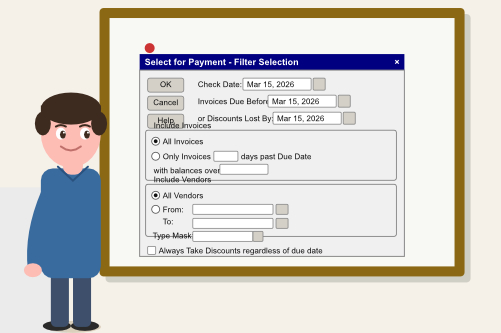
The Select for Payment screen is one of the most misunderstood and underused features in Sage 50 US. Many users treat it like a simple “pay bills” list, but when you use it properly, it becomes a powerful cash flow control center for your accounts payable.
In this article, we’ll walk through how to use the Select for Payment screen in a practical, everyday way — just real workflow tips you can use today.
What the Select For Payment Screen Actually Does
The Select for Payment screen is more than a list of unpaid bills. It’s a decision screen that helps you:
- Prioritize payments based on due dates and cash availability
- Avoid late fees and vendor relationship issues
- Manage cash flow by controlling what gets paid and when
- Prevent duplicate or accidental payments by reviewing everything in one place
Think of it as your daily AP control panel inside Sage 50.
1. Start With the Right Filters
Most users skip the filters, and that’s exactly why the Select for Payment screen can feel overwhelming. A few smart filters can turn a long, messy list into a clean, actionable queue.
Useful filters include:
- Due Date – Show only invoices due today, this week, or within a specific date range.
- Discount Date – Focus on invoices that qualify for early payment discounts.
- Vendor Type – Separate utilities, inventory vendors, contractors, and other categories.
- Payment Method – Filter by ACH, check, or credit card to match your payment run.
Once you apply filters, the screen becomes much easier to work with, and you can focus on what truly needs attention today.
2. Understand the “Pay” Checkbox
The Pay checkbox is where many mistakes happen.
- Checking Pay means “include this invoice in the current payment run.”
- Leaving it unchecked keeps the invoice open but excludes it from this batch of payments.
If you see invoices automatically checked, Sage 50 is usually telling you they are due or discount eligible based on your settings. It’s still worth reviewing them, but it’s a helpful starting point.
3. Use the “Pay Amount” Column Wisely
The Pay Amount column is one of the most powerful parts of the Select for Payment screen, especially for cash flow management.
You can use it to:
- Short-pay an invoice if you’re disputing part of the amount.
- Split payments across multiple weeks instead of paying the full balance at once.
- Pay only the discounted amount when early payment terms apply.
- Pay only the past-due portion while leaving future-dated invoices for later.
This is how many AP teams keep vendors happy while still protecting cash flow.
4. Select an Invoice and See Its Details
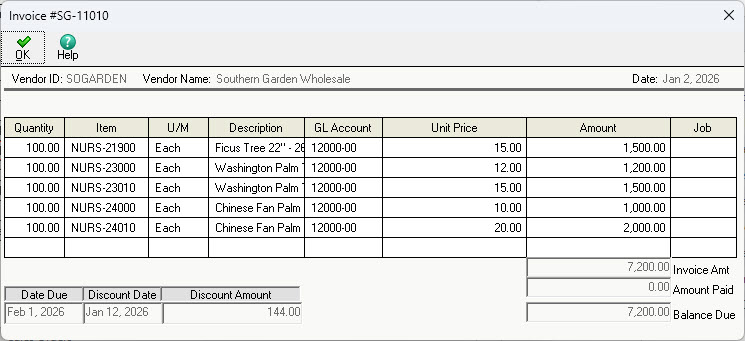
If you need to see what an invoice is for, click on it in the grid and select the “Detail” button at the top of the screen.
You will not be able to change any details of the transaction — it’s for review purposes only.
5. Watch the Running Total at the Bottom
At the bottom of the Select for Payment screen, Sage 50 shows a running total of the payments you’ve selected. This is your real-time cash flow guardrail.
As you check and uncheck invoices:
- The total updates instantly.
- You can stay under a daily or weekly cash limit.
- You reduce the risk of overdrafts or surprise cash shortages.
This is a big advantage over paying invoices one by one without seeing the full picture.
6. Review the Remittance Before Finalizing
Before you finalize the payment run, take a brief moment to review the remittance or payment list. This is your last chance to catch:
- Incorrect amounts
- Wrong vendors
- Old invoices that shouldn’t be paid yet
- Discounts that weren’t applied correctly
A quick 30-second review can save hours of cleanup later.
7. Use “Print” to Finalize Your Payments
Once you’ve reviewed your list, adjusted amounts, and confirmed your total, use the “Print” button at the top of the screen.
You may notice the down arrow next to the “Print” button. This gives you two more options:
- Preview the checks
- Print a report
If you don’t physically send out checks and use some form of ACH, you can print the checks to a PDF file.
Final Takeaway
The Select for Payment screen in Sage 50 US is more than just a list of bills. When you use it properly, it becomes a daily AP control panel that helps you:
- Pay the right vendors
- At the right time
- For the right amounts
- With full awareness of your cash flow
If your accounts payable process feels stressful or unpredictable, building a daily habit around the Select for Payment screen is one of the easiest ways to bring order and confidence back into your Sage 50 workflow.
DataSoft Blog
Bulk Email Paystubs for Sage 50: Automate and Simplify Payroll Delivery
Delivering paystubs shouldn’t slow down payroll day. If your team is still printing, folding, and manually emailing paystubs, you’re losing valuable time and increasing the risk of errors. That’s why DataSoft created Bulk Email Paystubs for Sage 50 — a fast, secure, and automated way to generate and email paystubs directly from your Sage 50 company data.
This tool eliminates manual steps, reduces payroll stress, and ensures every employee receives their paystub quickly and securely.
Why Businesses Choose Bulk Email Paystubs for Sage 50
1. Instant PDF Paystub Generation
The software pulls live payroll data directly from your Sage 50 company file and automatically generates secure PDF paystubs — no exporting, no merging, and no manual editing required.
2. Email Hundreds of Paystubs in Minutes
Select your payroll date, load the checks, customize your message, and click Send. Every employee receives a private, secure PDF paystub in their inbox.
3. No Syncing or Third Party Data Issues
Because the tool connects directly to your Sage 50 database, you avoid common syncing problems such as:
- Out of date employee information
- Incorrect payroll data
- Third party integration failures
Your paystubs always match the exact data inside Sage 50.
4. Fully Customizable Paystub Layout (Professional Edition)
Need branded paystubs? Want to adjust fields or formatting? The Professional Edition gives you full control over the paystub template for a polished, professional look.
How the Bulk Email Paystubs Tool Works
- Launch the Bulk Email Paystubs program.
- Select your Sage 50 company template.
- Choose the payroll check date.
- Click Load Checks to pull in all employees paid on that date.
- Customize your email subject and message.
- Click Send Email to deliver all paystubs instantly.
What used to take hours now takes minutes.
Standard vs. Professional Edition
| Feature |
Standard |
Professional |
| Unlimited employees |
✓ |
✓ |
| Unlimited Sage 50 companies |
✓ |
✓ |
| Automated PDF generation |
✓ |
✓ |
| Custom email messaging |
✓ |
✓ |
| Editable paystub layout |
— |
✓ |
Both editions are licensed per workstation and include updates and email support.
Who Benefits Most From Bulk Email Paystubs?
- Accountants managing payroll for multiple clients
- Growing companies looking to eliminate manual paystub distribution
- HR teams needing a secure, consistent delivery method
- Remote and hybrid workforces requiring digital paystub access
- Any Sage 50 user who values accuracy, speed, and compliance
If you process payroll more than once a month, this tool pays for itself almost immediately.
A Faster, More Secure Payroll Workflow
Employees receive their paystubs faster. HR teams save hours of manual work. Your business gains a more secure, compliant, and efficient payroll process.
Bulk Email Paystubs for Sage 50 isn’t just a convenience — it’s a modern payroll essential.
More Information