
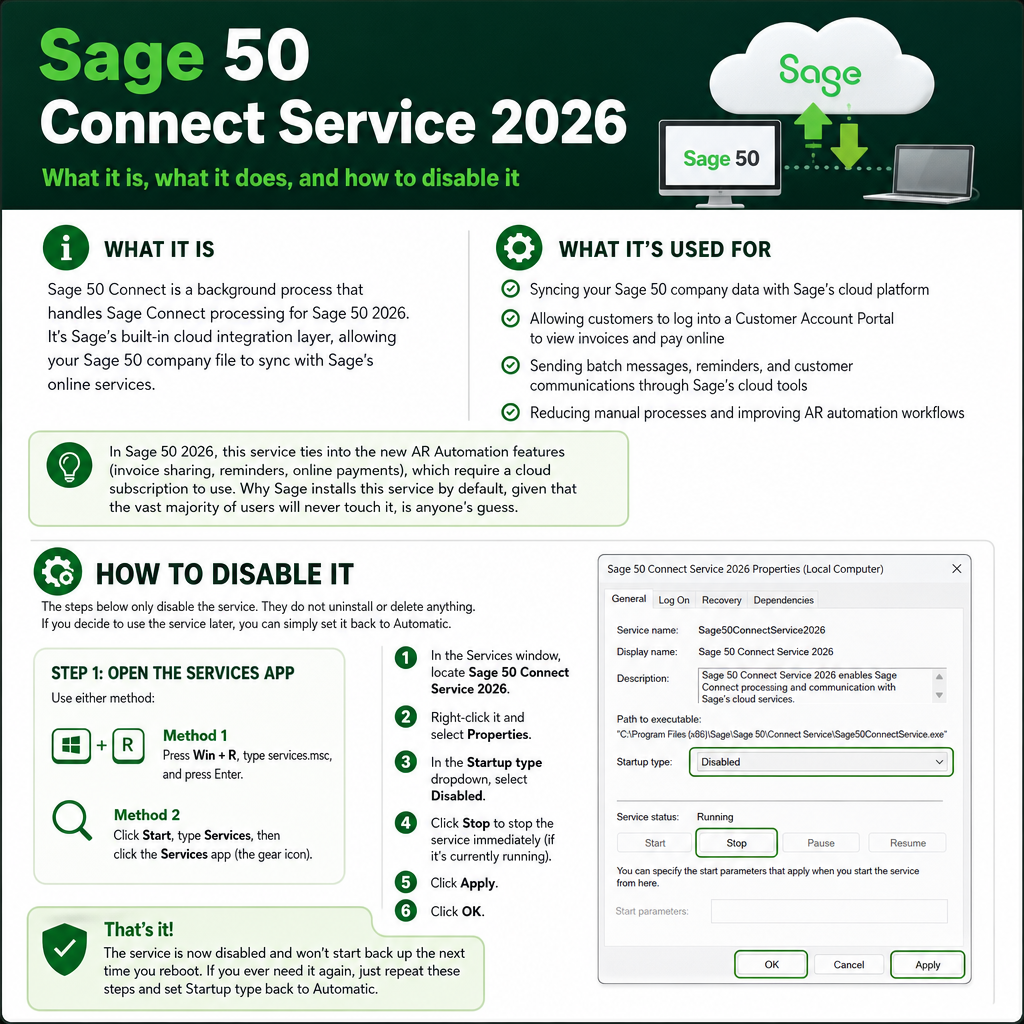
What it is
Sage 50 Connect is a background process that handles Sage Connect processing for Sage 50 2026. It's Sage's built-in cloud integration layer, allowing your Sage 50 company file to sync with Sage's online services.
What it's used for
- Syncing your Sage 50 company data with Sage's cloud platform
- Allowing customers to log into a Customer Account Portal to view invoices and pay online
- Sending batch messages, reminders, and customer communications through Sage's cloud tools
- Reducing manual processes and improving AR automation workflows
In Sage 50 2026, this service ties into the new AR Automation features (invoice sharing, reminders, online payments), which require a cloud subscription to use.
Why Sage installs this service by default, given that the vast majority of users will never touch it, is anyone's guess.
Why you may want to turn it off
Even if you have no plans to use the AR Automation or cloud features, this service runs in the background regardless. For most users, that means:
- Unnecessary processing of data that has nothing to do with how they actually use Sage 50
- Occasional conflicts with user security roles
- Slower company file opening times
If you're not using the cloud-based AR features, there's little reason to let this service run.
How to disable it
The steps below only disable the service. They do not uninstall or delete anything. If you decide to use the service later, you can simply set it back to Automatic.
- Open the Services app using either method:
- Method 1: Press
Win + R, typeservices.msc, and press Enter. - Method 2: Click Start, type Services, then click the Services app (the gear icon).
- Method 1: Press
- In the Services window, locate Sage 50 Connect Service 2026.
- Right-click it and select Properties.
- In the Startup type dropdown, select Disabled.
- Click Stop to stop the service immediately (if it's currently running).
- Click Apply, then OK.
That's it. The service is now disabled and won't start back up the next time you reboot. If you ever need it again, just repeat these steps and set Startup type back to Automatic.