
The Daily AP Habit That Saves Time, Prevents Mistakes, and Keeps Cash Flow Predictable
The Select for Payment screen is one of the most misunderstood and underused features in Sage 50 US. Many users treat it like a simple “pay bills” list, but when you use it properly, it becomes a powerful cash flow control center for your accounts payable.
In this article, we’ll walk through how to use the Select for Payment screen in a practical, everyday way — just real workflow tips you can use today.
What the Select For Payment Screen Actually Does
The Select for Payment screen is more than a list of unpaid bills. It’s a decision screen that helps you:
- Prioritize payments based on due dates and cash availability
- Avoid late fees and vendor relationship issues
- Manage cash flow by controlling what gets paid and when
- Prevent duplicate or accidental payments by reviewing everything in one place
Think of it as your daily AP control panel inside Sage 50.
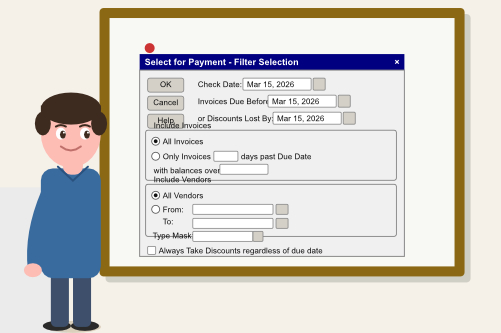
1. Start With the Right Filters
Most users skip the filters, and that’s exactly why the Select for Payment screen can feel overwhelming. A few smart filters can turn a long, messy list into a clean, actionable queue.
Useful filters include:
- Due Date – Show only invoices due today, this week, or within a specific date range.
- Discount Date – Focus on invoices that qualify for early payment discounts.
- Vendor Type – Separate utilities, inventory vendors, contractors, and other categories.
- Payment Method – Filter by ACH, check, or credit card to match your payment run.
Once you apply filters, the screen becomes much easier to work with, and you can focus on what truly needs attention today.
2. Understand the “Pay” Checkbox
The Pay checkbox is where many mistakes happen.
- Checking Pay means “include this invoice in the current payment run.”
- Leaving it unchecked keeps the invoice open but excludes it from this batch of payments.
If you see invoices automatically checked, Sage 50 is usually telling you they are due or discount eligible based on your settings. It’s still worth reviewing them, but it’s a helpful starting point.
3. Use the “Pay Amount” Column Wisely
The Pay Amount column is one of the most powerful parts of the Select for Payment screen, especially for cash flow management.
You can use it to:
- Short-pay an invoice if you’re disputing part of the amount.
- Split payments across multiple weeks instead of paying the full balance at once.
- Pay only the discounted amount when early payment terms apply.
- Pay only the past-due portion while leaving future-dated invoices for later.
This is how many AP teams keep vendors happy while still protecting cash flow.
4. Select an Invoice and See Its Details
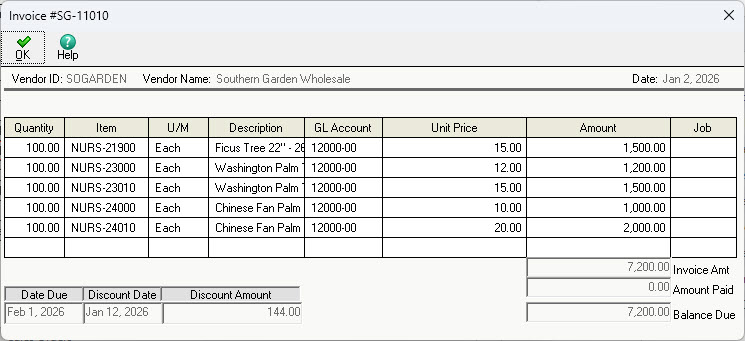
If you need to see what an invoice is for, click on it in the grid and select the “Detail” button at the top of the screen.
You will not be able to change any details of the transaction — it’s for review purposes only.
5. Watch the Running Total at the Bottom
At the bottom of the Select for Payment screen, Sage 50 shows a running total of the payments you’ve selected. This is your real-time cash flow guardrail.
As you check and uncheck invoices:
- The total updates instantly.
- You can stay under a daily or weekly cash limit.
- You reduce the risk of overdrafts or surprise cash shortages.
This is a big advantage over paying invoices one by one without seeing the full picture.
6. Review the Remittance Before Finalizing
Before you finalize the payment run, take a brief moment to review the remittance or payment list. This is your last chance to catch:
- Incorrect amounts
- Wrong vendors
- Old invoices that shouldn’t be paid yet
- Discounts that weren’t applied correctly
A quick 30-second review can save hours of cleanup later.
7. Use “Print” to Finalize Your Payments
Once you’ve reviewed your list, adjusted amounts, and confirmed your total, use the “Print” button at the top of the screen.
You may notice the down arrow next to the “Print” button. This gives you two more options:
- Preview the checks
- Print a report
If you don’t physically send out checks and use some form of ACH, you can print the checks to a PDF file.
Final Takeaway
The Select for Payment screen in Sage 50 US is more than just a list of bills. When you use it properly, it becomes a daily AP control panel that helps you:
- Pay the right vendors
- At the right time
- For the right amounts
- With full awareness of your cash flow
If your accounts payable process feels stressful or unpredictable, building a daily habit around the Select for Payment screen is one of the easiest ways to bring order and confidence back into your Sage 50 workflow.