
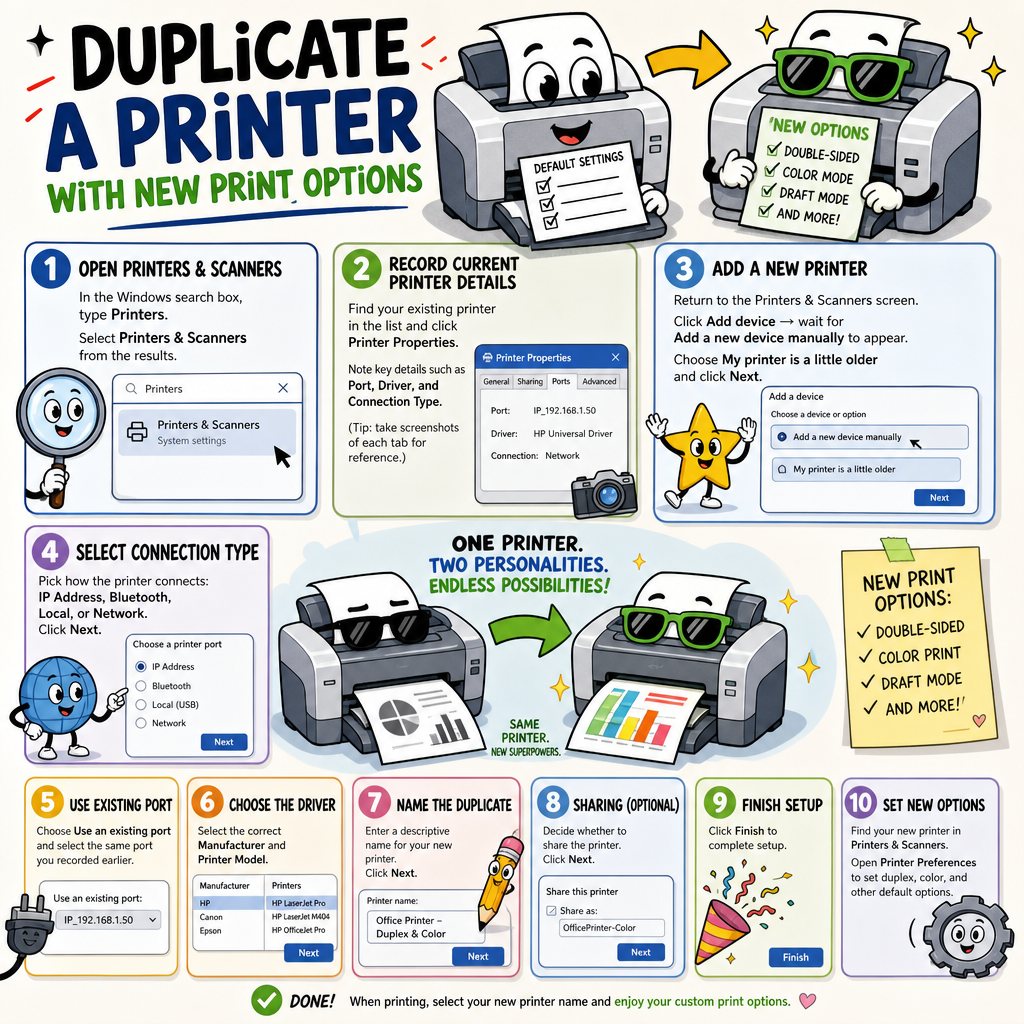
Tip: Create a Duplicate Printer for Double-Sided Printing
Did you know you can add the same printer twice in Windows 11 — once set to print single-sided, and once set to always print double-sided? No more digging through printer settings every time. Just pick the right "printer" from the list when you print, and Windows handles the rest.
The key point: Windows doesn't have a literal "duplicate" button — you re-add the same physical printer using its existing port and driver, give it a new name, then set different defaults on each copy. Each named printer instance saves its own default settings independently.
Step 1 – Open Printers & Scanners
- Select Printers & Scanners from the results.
- In the Windows search box, type Printers.
Step 2 – Record Current Printer Details
- Find your existing printer in the list and click Printer Properties.
- Note key details such as Port, Driver, and Connection Type. (Tip: take screenshots of each tab for reference.)
Step 3 – Add a New Printer
- Return to the Printers & Scanners screen.
- Click Add device → wait for Add a new device manually to appear.
- Choose My printer is a little older and click Next.
Step 4 – Select Connection Type
- Pick how the printer connects: IP Address, Bluetooth, Local, or Network.
- Click Next.
Step 5 – Use Existing Port
- Choose Use an existing port and select the same port you recorded earlier.
Step 6 – Choose the Driver
- From the list, select the correct Manufacturer and Printer Model.
- Click Next.
Step 7 – Name the Duplicate
- Enter a descriptive name (e.g., HP LaserJet – Color or HP LaserJet – Grayscale).
- Click Next.
Step 8 – Sharing and Finish
- Decide whether to share the printer.
- Click Finish to complete setup.
Step 9 – Adjust Preferences
- Locate your new printer in Printers & Scanners.
- Open Printer Preferences to set duplex, color, or other default options.
Step 10 – Print Using the New Profile
- When printing, select the new printer name to apply your customized settings.