
The DB Check List control displays a dataset as a multi-column grid where every row has a checkbox. Users can check any number of rows, and the control returns the selected key values as a comma-delimited string formatted for direct use in a SQL IN clause. It is ideal for letting users pick multiple customers, items, categories, or any other entity before the report runs.
The selected keys are stored in a report variable and survive the FastReport component rebuild between the dialog and report phases, so they are always available in BeforeStartReport and throughout the report.
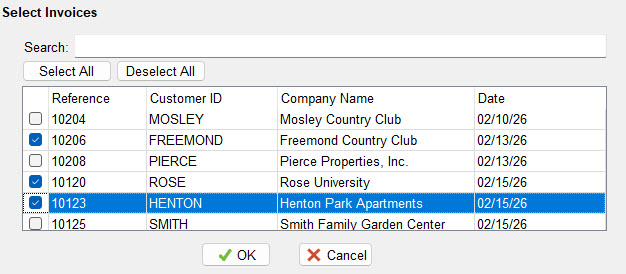
Adding to a Report
Drop a DB Check List onto a dialog page and set the following in the Object Inspector:
- Set DataSetName to the dataset that provides the list rows
- Set KeyFieldName to the field whose value is returned for each checked row
- Set KeyType to match the data type of the key field
- Optionally double-click the control to open the Column Editor and choose which columns to display
If ColumnDefs is left empty, all fields from the dataset are shown as columns automatically.
Column Editor
Double-clicking the control in the report designer opens the Column Editor, which works the same way as the DB Lookup Extended column editor. Each column has three settings:
| Setting | Description |
|---|---|
| Field Name | The dataset field to display. If the dataset is open, a dropdown lists available fields. |
| Caption | The column header text shown in the grid |
| Width | The column width in pixels |
Column definitions are stored as the ColumnDefs property in the format FieldName|Caption|Width separated by semicolons. Leave ColumnDefs empty to show all dataset fields automatically.
SelectedKeys Format
The SelectedKeys property returns a comma-delimited string of the checked key values, formatted based on the KeyType property so it can be used directly in a SQL IN clause.
| KeyType | Example Output | Use for |
|---|---|---|
| ktNumber | 1,2,3 | Integer or numeric key fields |
| ktString | 'Acme','Bolt Co','Smith Ltd' | Text key fields |
| ktDate | '2024-01-01','2024-06-30' | Date key fields (stored as ISO yyyy-mm-dd) |
| ktBoolean | 1,0,1 | Boolean key fields — uses BoolTrueValue / BoolFalseValue |
The output is ready to drop straight into a SQL WHERE clause:
WHERE CustomerID IN ([DBCheckList1.SelectedKeys])
Properties
| Property | Type | Default | Description |
|---|---|---|---|
| DataSetName | String | Name of the report dataset that provides the list rows | |
| KeyFieldName | String | The field whose value is collected for each checked row | |
| KeyType | TfrxDBCheckListKeyType | ktNumber | Controls how key values are formatted in SelectedKeys. Options: ktNumber, ktString, ktDate, ktBoolean. |
| BoolTrueValue | String | '1' | The value written to SelectedKeys for a checked boolean key |
| BoolFalseValue | String | '0' | The value written to SelectedKeys for an unchecked boolean key |
| ColumnDefs | String | Column definitions for the grid. Leave empty to show all dataset fields. Set via the Column Editor or as a formatted string. | |
| SelectedKeys | String | The comma-delimited list of checked key values, SQL-formatted based on KeyType. Read or write from script. | |
| AutoOpenDataSet | Boolean | False | Automatically opens the dataset if it is not already open when the control initialises |
| SearchVisible | Boolean | True | Shows or hides the search box above the grid |
| ButtonsVisible | Boolean | True | Shows or hides the Select All and Deselect All buttons |
Script Methods
| Method | Description |
|---|---|
SelectAll | Checks all rows in the grid |
DeselectAll | Unchecks all rows in the grid |
Refresh | Repopulates the grid from the dataset. Use this if the dataset contents change after the control has already initialised. |
Report Variable
The control automatically writes SelectedKeys to a report variable each time a checkbox changes. The variable is named after the control:
<ControlName>.SelectedKeysFor example, if the control is named DBCheckList1, the variable is DBCheckList1.SelectedKeys. Use it in report expressions or macro substitutions:
// In a SQL macro — replace directly into the query text
WHERE CustomerID IN ([DBCheckList1.SelectedKeys])

// In a report text object expression
Selected: [DBCheckList1.SelectedKeys]
Events
| Event | Description |
|---|---|
| OnClick | Fires when the control is clicked |
| OnEnter | Fires when focus enters the control |
| OnExit | Fires when focus leaves the control |
| OnKeyDown | Fires when a key is pressed down |
| OnKeyPress | Fires when a key is pressed |
| OnKeyUp | Fires when a key is released |
| OnMouseDown | Fires when a mouse button is pressed |
| OnMouseMove | Fires when the mouse moves over the control |
| OnMouseUp | Fires when a mouse button is released |
Examples
Basic setup — numeric key
Set DataSetName to your customer query, KeyFieldName to CustNo, and KeyType to ktNumber. The user checks the customers they want and SelectedKeys returns something like 1,4,7.
Using SelectedKeys in BeforeStartReport
procedure BeforeStartReport;
begin
  // Guard against nothing being selected
  if DBCheckList1.SelectedKeys = '' then
    RaiseException('Please select at least one customer.');

  // Pass the selected keys as a macro for SQL substitution
  SetParam('qryReport', 'CustomerList', DBCheckList1.SelectedKeys);
end;
Using SelectedKeys directly in a SQL macro
If your dataset uses macro substitution, you can drop SelectedKeys directly into the SQL at design time:
SELECT * FROM Orders
WHERE CustomerID IN (&CustomerList)
Then in BeforeStartReport:
qryOrders.Macros.MacroByName('CustomerList').Value :=
  DBCheckList1.SelectedKeys;
String key type
Set KeyType to ktString when the key field contains text values. SelectedKeys will wrap each value in single quotes:
// KeyType = ktString
// SelectedKeys returns: 'FL','GA','TX'

// Use in SQL:
WHERE StateCode IN ([DBCheckList1.SelectedKeys])
Pre-selecting values from script
// Pre-check specific keys when the dialog opens
// For ktNumber: comma-delimited numbers
DBCheckList1.SelectedKeys := '1,4,7';

// For ktString: include the quotes
DBCheckList1.SelectedKeys := '''Acme'',''Bolt Co''';
Select all and deselect all from script
// Check everything
DBCheckList1.SelectAll;

// Uncheck everything
DBCheckList1.DeselectAll;
Combining with a date range
procedure BeforeStartReport;
begin
  if DBCheckList1.SelectedKeys = '' then
    RaiseException('Please select at least one item.');

  SetParam('qryReport', 'ItemList',  DBCheckList1.SelectedKeys);
  SetParam('qryReport', 'StartDate', DateRangePicker1.StartDate);
  SetParam('qryReport', 'EndDate',   DateRangePicker1.EndDate);
end;
Hiding the search and buttons for a compact layout
DBCheckList1.SearchVisible  := False;
DBCheckList1.ButtonsVisible := False;
Refreshing after a dataset change
// If another control changes the dataset contents (e.g. a filter),
// call Refresh to reload the grid
DBCheckList1.Refresh;