
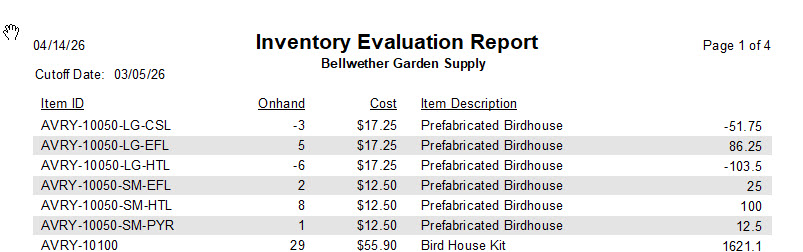
Alternating row backgrounds can be created in several ways, such as using a Text Object (MemoView) or applying conditional formatting through script logic. When using the Text Object method, place a MemoView that spans the full width of the row and use it as the background layer. After positioning it, right‑click the MemoView and choose Send to Back so it sits behind all other objects in the row. This ensures the background color displays correctly without covering your data fields.
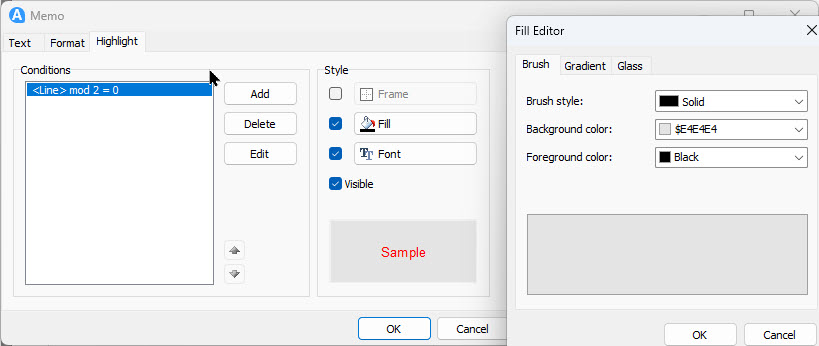
To apply alternating colors, right‑click the Text Object and select Edit to open the standard Text Object editor. Switch to the Highlight tab. In the Conditions area, click Add to create a new highlight rule. This opens the Expression Editor. In the expression field, enter:
Code
<Line> mod 2 = 0
Confirm the expression, then set the Fill color to the background color you want applied to even‑numbered rows. Click OK to save the highlight rule and close the dialog.
Using this method can affect certain export formats because the Text Object is treated as a regular visible control during rendering. In situations where the background object interferes with the exported output, you may need to disable it by setting its Visible property to False. This can be controlled through script logic or tied to a checkbox on a Dialog page, depending on how dynamic you want the behavior to be. Testing is important here, as the ideal approach can vary depending on the report layout and the export formats you rely on.