
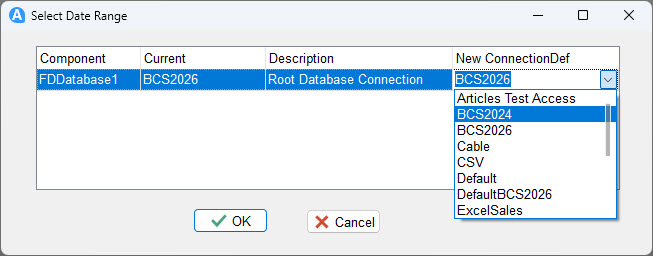
The Connection Switcher control allows users to reassign database connections within a report dialog at runtime. It displays a grid listing every TfrxFDDatabase component in the report, showing its current connection and allowing the user to select a different one from a dropdown of all available connection definitions.
Connection assignments are automatically saved to an INI file in the Articles settings folder and reloaded the next time the same report is run, so users only need to configure connections once per report.
When the Hide property is set to True, the control applies saved connection mappings silently with no UI — useful for automated or scheduled reports.
Adding to a Report
Drop a Connection Switcher onto a dialog page in the report designer. It will automatically discover all TfrxFDDatabase components in the report — no additional configuration is needed to populate the grid.
Size the control to fit your dialog. A minimum height of around 160 pixels is recommended to show several rows comfortably.
How It Works
When the report runs, the Connection Switcher reads the saved INI file for that report and pre-fills the New ConnectionDef column with any previously saved choices. The grid shows four columns:
| Column | Description |
|---|---|
| Component | The name of the TfrxFDDatabase component in the report |
| Current | The connection definition currently assigned to that component |
| Description | The human-readable description from the database component |
| New ConnectionDef | Editable dropdown — select the connection to use for this run |
When the user changes a value in the New ConnectionDef column, the change is applied immediately to the live database component and saved to the INI file. No OK button is needed — changes take effect as soon as they are selected.
The INI file is stored in the Articles settings folder as <ReportName>connect.ini.
Properties
| Property | Type | Default | Description |
|---|---|---|---|
| Hide | Boolean | False | When True, the control is invisible and applies saved mappings silently without showing any UI. Use this for automated or scheduled reports where connection selection should happen without user interaction. |
Script Methods
The following methods are available in the report script.
| Method | Description |
|---|---|
ApplyMappings | Applies the current grid selections to all TfrxFDDatabase components in the report. Called automatically when a selection changes, but can also be called manually from script. |
SaveMappings | Saves the current grid selections to the INI file. Called automatically on change. |
LoadMappings | Reloads saved selections from the INI file and applies them to the grid. |
Events
| Event | Description |
|---|---|
| OnClick | Fires when the control is clicked |
| OnEnter | Fires when focus enters the control |
| OnExit | Fires when focus leaves the control |
| OnKeyDown | Fires when a key is pressed down |
| OnKeyPress | Fires when a key is pressed |
| OnKeyUp | Fires when a key is released |
| OnMouseDown | Fires when a mouse button is pressed |
| OnMouseMove | Fires when the mouse moves over the control |
| OnMouseUp | Fires when a mouse button is released |
Examples
Basic use — visible connection picker
Drop the control onto a dialog page and leave Hide = False. The user sees the grid and can change connections before the report runs. No script is required for basic use.
Silent mode — apply saved connections automatically
Set Hide = True in the Object Inspector. The control will silently load and apply whatever connections were last saved for this report, with no dialog shown to the user.
// You can also toggle Hide from script if needed
ConnectionSwitcher1.Hide := True;
ConnectionSwitcher1.ApplyMappings;
Resetting connections from script
// Force a reload from the saved INI file and re-apply
ConnectionSwitcher1.LoadMappings;
ConnectionSwitcher1.ApplyMappings;
Manually applying after a script change
// If you programmatically change something and need to push it through
ConnectionSwitcher1.ApplyMappings;
ConnectionSwitcher1.SaveMappings;
Typical dialog page setup
A common pattern is to place the Connection Switcher on its own dialog page, or combine it with other parameter controls. The report then uses whichever connection the user selected when the dialog was submitted.
// In BeforeStartReport — no action needed, the control handles everything.
// Connections are already switched by the time BeforeStartReport runs.

// To verify which connection is active for a given database component:
ShowMessage(frxFDDatabase1.ConnectionDefName);
INI File Location
Saved connection mappings are stored at:
<SettingsFolder>\<ReportName>connect.iniWhere <ReportName> is derived from the report's ReportOptions.Name property with the category prefix removed and any characters that are invalid in filenames stripped. You can find the settings folder path using the GetSettingsFolder system function.
To reset the saved connections for a report, simply delete the corresponding connect.ini file from the settings folder.